Delivery Workflow
How cascade delivery policies route messages through multiple channels with fallback.
Overview
When you send a message via POST /v1/send, it enters an async delivery pipeline. The delivery orchestrator processes messages from a task queue, attempting delivery through your configured cascade policy.
Cascade policies
A cascade policy is an ordered list of delivery steps. Each step specifies a channel and a timeout. The orchestrator tries each step in order — if delivery fails or times out, it moves to the next step.
Example: WhatsApp → SMS → Email
| Step | Channel | Timeout |
|---|---|---|
| 1 | 300s | |
| 2 | SMS (Sinch) | 300s |
| 3 | Email (SMTP) | 300s |
With this policy:
- The orchestrator sends via WhatsApp
- If no delivery confirmation within 5 minutes, it tries SMS
- If SMS also fails or times out, it falls back to Email
Message flow
POST /v1/send
    │
    ▼
┌─────────────────┐
│  Message Queue   │
└────────┬────────┘
         │
         ▼
┌─────────────────┐     ┌──────────────┐
│   Orchestrator   │────▶│  Channel 1   │──▶ Delivered? ──▶ Done
└────────┬────────┘     │  (WhatsApp)  │
         │              └──────────────┘
         │ timeout/fail
         ▼
┌─────────────────┐     ┌──────────────┐
│   Next Step      │────▶│  Channel 2   │──▶ Delivered? ──▶ Done
└────────┬────────┘     │  (SMS)       │
         │              └──────────────┘
         │ timeout/fail
         ▼
┌─────────────────┐     ┌──────────────┐
│   Final Step     │────▶│  Channel 3   │──▶ Delivered? ──▶ Done
                        │  (Email)     │
                        └──────────────┘
                              │ fail
                              ▼
                         All attempts
                          exhausted
Configuring policies
Configure your delivery policy in the dashboard workflow editor at Settings → Workflow.
The editor lets you:
- Add delivery steps (one per channel)
- Reorder steps by priority
- Set per-step timeouts
- Remove steps
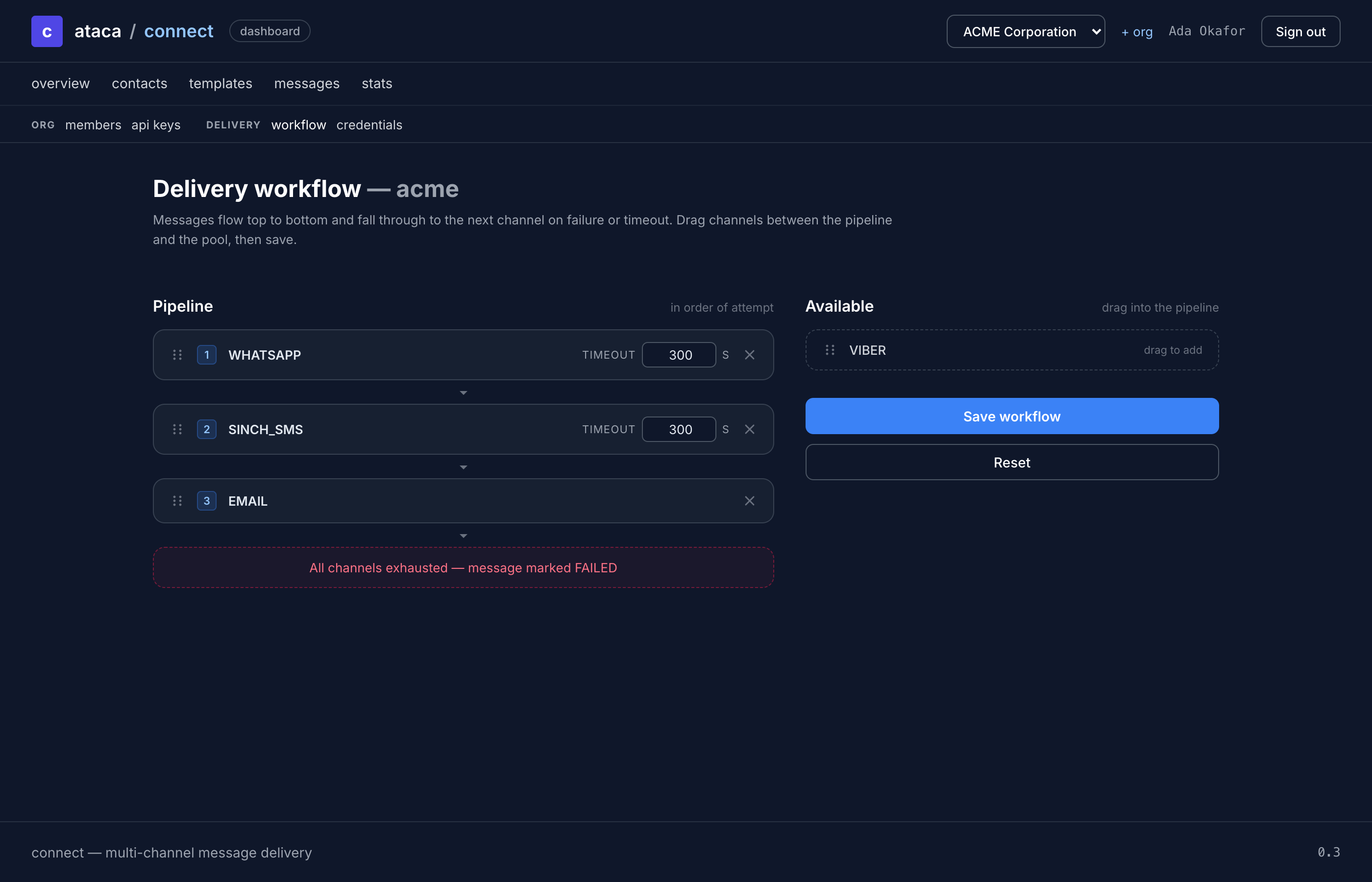
Delivery attempts
Each step in the cascade creates a delivery attempt record. The attempt tracks:
| Field | Description |
|---|---|
| Channel | Which delivery channel was used |
| Status | pending, sent, delivered, failed |
| Provider ID | External message ID from the provider |
| Error | Error message if delivery failed |
| Timestamps | Created, sent, delivered, or failed time |
View delivery attempts for any message in the dashboard under Messages → Message Detail.
Timeouts
Each cascade step has a configurable timeout (default: 300 seconds / 5 minutes). The timeout starts when the message is sent to the provider.
If no webhook confirmation arrives within the timeout:
- The attempt is marked as timed out
- The orchestrator cascades to the next step
- If no more steps remain, the message delivery is complete (all attempts exhausted)
Failure handling
Two mechanisms keep a failing route from being tried again and again.
Channel backoff. When a provider rejects your credential or account (for example an invalid token), Connect parks that channel at once. After 5 consecutive transient failures (network errors, provider 5xx, rate limits), it parks the channel too. An hour without a failure resets that count. A parked channel is skipped and the cascade moves to the next channel. The first backoff is 1 minute. Each further failure doubles it, up to 6 hours. When the backoff ends, Connect lets one message through as a probe. If it succeeds, the channel is cleared and a credential marked invalid becomes verified. If it fails, the channel is parked again for the next longer backoff. Saving or revoking the credential clears the backoff. The state is stored per organization and per channel, so one provider's outage never affects another. The credentials page lists parked channels, and channels that failed in the last hour, in the "Failing channels" table.
Blocked channels per contact. After 3 consecutive permanent failures to one contact on one channel (the provider rejected the recipient, for example a number that is not on WhatsApp) with no successful delivery in between, the contact is blocked on that channel. Transient failures and timeouts never count. Later messages skip the channel and use the next one in the policy. Blocks are listed on the contact's page in the dashboard, with the reason, and an operator can unblock the channel there.
Rate limits and sender reputation
Each channel can carry a base limit in messages per minute, set by the platform operator. The limit applies per organization. When it is reached, the next message waits for its turn; it stays pending and is not counted as a failed attempt. A waiting message survives a restart: its place in the queue is stored with the message and picked up again within seconds.
Connect tracks each organization's recent delivery outcomes per channel and lowers the limit as the success rate drops: to half at under 90% delivered, a quarter at under 70%, a tenth at under 50%. The limit rises again as deliveries recover. The statistics page in the dashboard shows the current reputation, the base and current limit, and whether the channel is parked.
Synchronous vs. asynchronous channels
Some channels are synchronous — delivery succeeds or fails immediately (e.g., SMTP email). Others are asynchronous — delivery is confirmed later via webhook (e.g., WhatsApp, SMS).
For synchronous channels, the orchestrator knows the result immediately and can cascade without waiting for the timeout. For asynchronous channels, it waits for a webhook callback or the timeout, whichever comes first.