Configure WhatsApp Cloud API for message delivery with template approval and webhook setup.
Prerequisites
- A Meta Business account
- A WhatsApp Business Platform app
- A registered phone number on the WhatsApp Business Platform
Credentials
You need the following from the Meta Business Platform:
| Credential | Where to find |
|---|---|
| Phone Number ID | WhatsApp → Getting Started → Phone Number ID |
| WhatsApp Business Account ID | WhatsApp → API Setup → WhatsApp Business Account ID |
| App Secret | App settings → Basic → App secret |
| Access Token | WhatsApp → Getting Started → Temporary or Permanent Token |
| Verify Token | A secret string you choose for webhook verification |
Configuration
- Navigate to Settings → Credentials in the dashboard
- Click Add Credential and select WhatsApp
- Enter your phone number ID and WhatsApp Business Account ID.
- Enter your verify token, app secret, and access token.
- Click Save
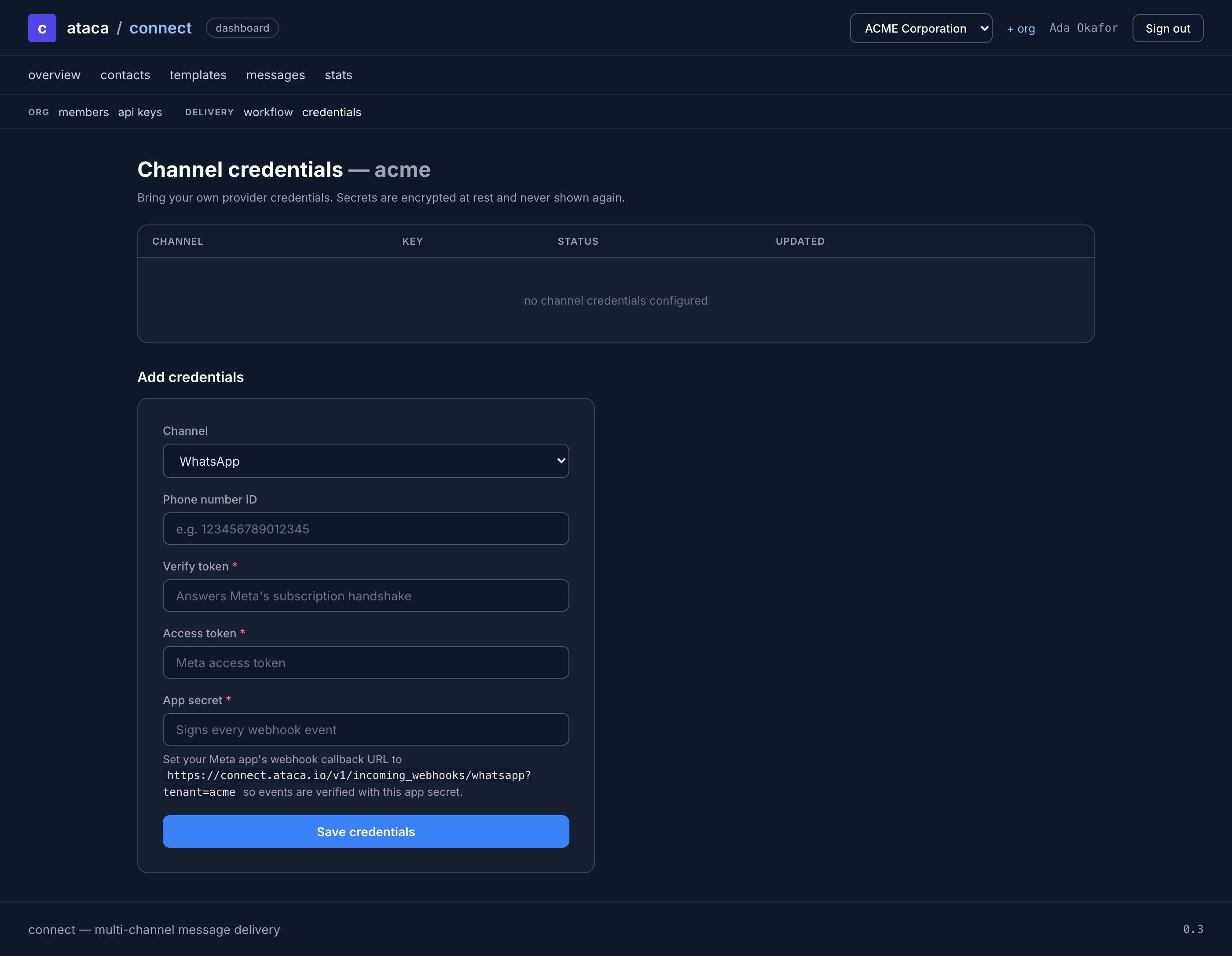
ATACA Connect encrypts your credentials using Vault Transit encryption (AES-256-GCM). Only the ciphertext is stored in the database.
Webhook setup
Configure the webhook URL in the Meta Business Platform:
- Go to WhatsApp → Configuration → Webhook
- Set the callback URL to:
https://connect.ataca.io/v1/incoming_webhooks/whatsapp?tenant=YOUR_ORGANISATION - Set the verify token to the same value you configured in Connect
- Subscribe to
messageswebhook field
Connect handles the verification challenge automatically when Meta sends a GET request to verify the URL.
Template approval
WhatsApp requires all business-initiated messages to use pre-approved templates. When you create a template with a WhatsApp body in Connect:
- Open Templates, then create or open a template.
- Select WHATSAPP, enable the channel, and enter its message, category, and language.
- Use preview values to check variables. Preview values are never saved or sent.
- Select Save changes. Connect submits changed WhatsApp content to Meta automatically.
- The editor updates from Submitting to Under review, then Ready or Rejected.
- If rejected, edit the message and save. Connect submits the new version automatically.
WhatsApp is skipped until the message's saved version is approved. Delivery continues through the configured fallback channels. Email and other channels without template approval can be used immediately.
Saving unchanged content creates no version. Changes create a version with a summary under Version history. Existing messages retain their saved version. Editing another channel preserves unchanged WhatsApp approval. Open View version to inspect saved content. Older imported versions may lack historical metadata.
Connect supplies placeholder defaults as review examples, or example text when no default exists. Provider names and name conflicts are handled automatically. Technical identifiers appear under Provider details.
If the editor shows Needs setup, open Update WhatsApp credentials and correct the reported issue. Template management requires the WhatsApp Business Account ID for the sender and token permissions for template management. Select Retry sync after correcting a setup problem. Transient failures retry automatically.
BYOK (Bring Your Own Key)
Each organization can configure its own WhatsApp credentials. This allows multi-tenant setups where each tenant sends from their own WhatsApp number. If no tenant-specific credentials exist, Connect falls back to the global default configuration.