Getting Started
Create your account, get an API key, and send your first message in under 5 minutes.
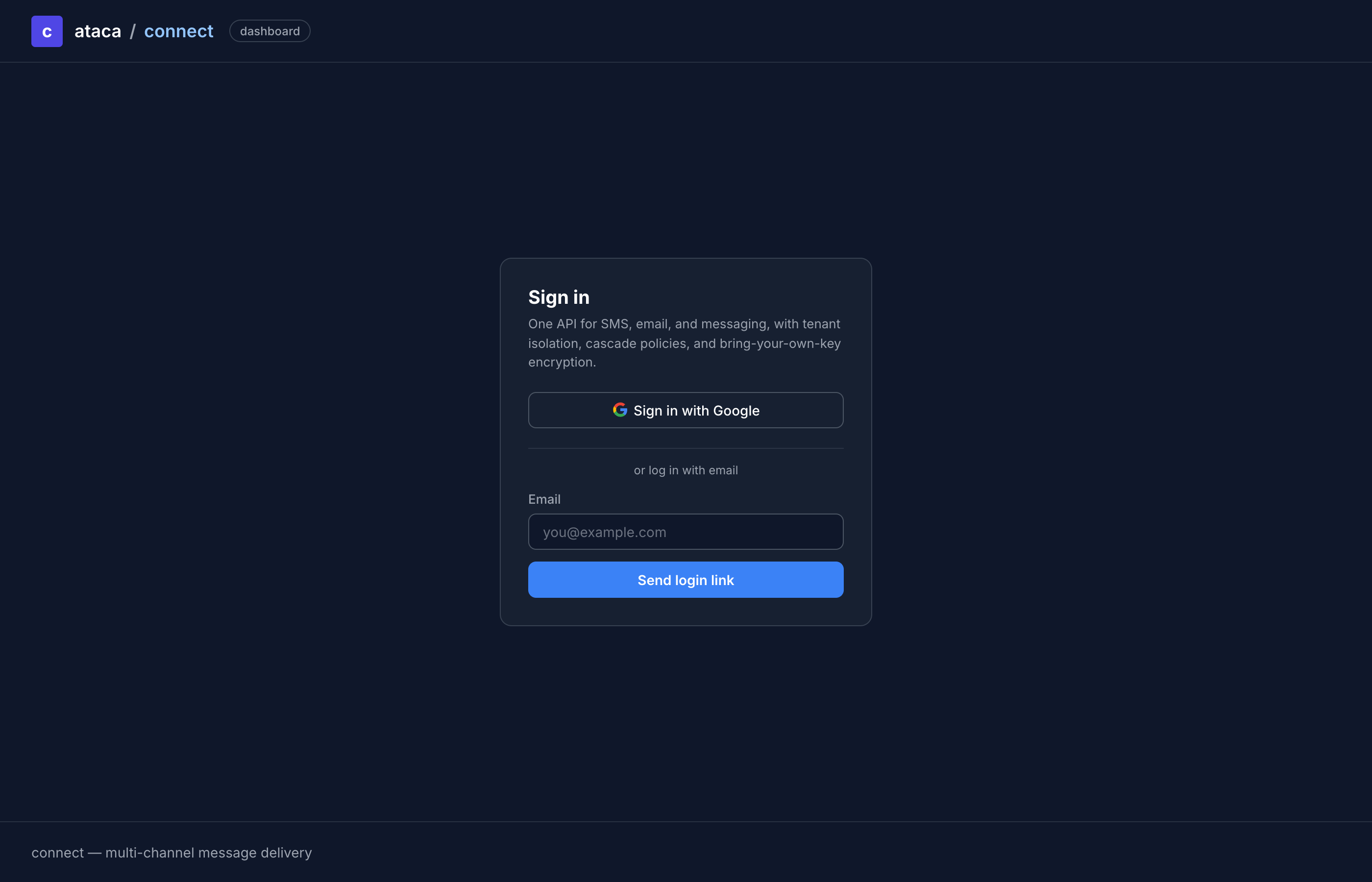
Sign in to the dashboard
Navigate to your ATACA Connect dashboard and sign in with your preferred OAuth provider (Google, GitHub, or Microsoft) or request a magic link via email.
On first login, a personal organization is created automatically — no setup required.
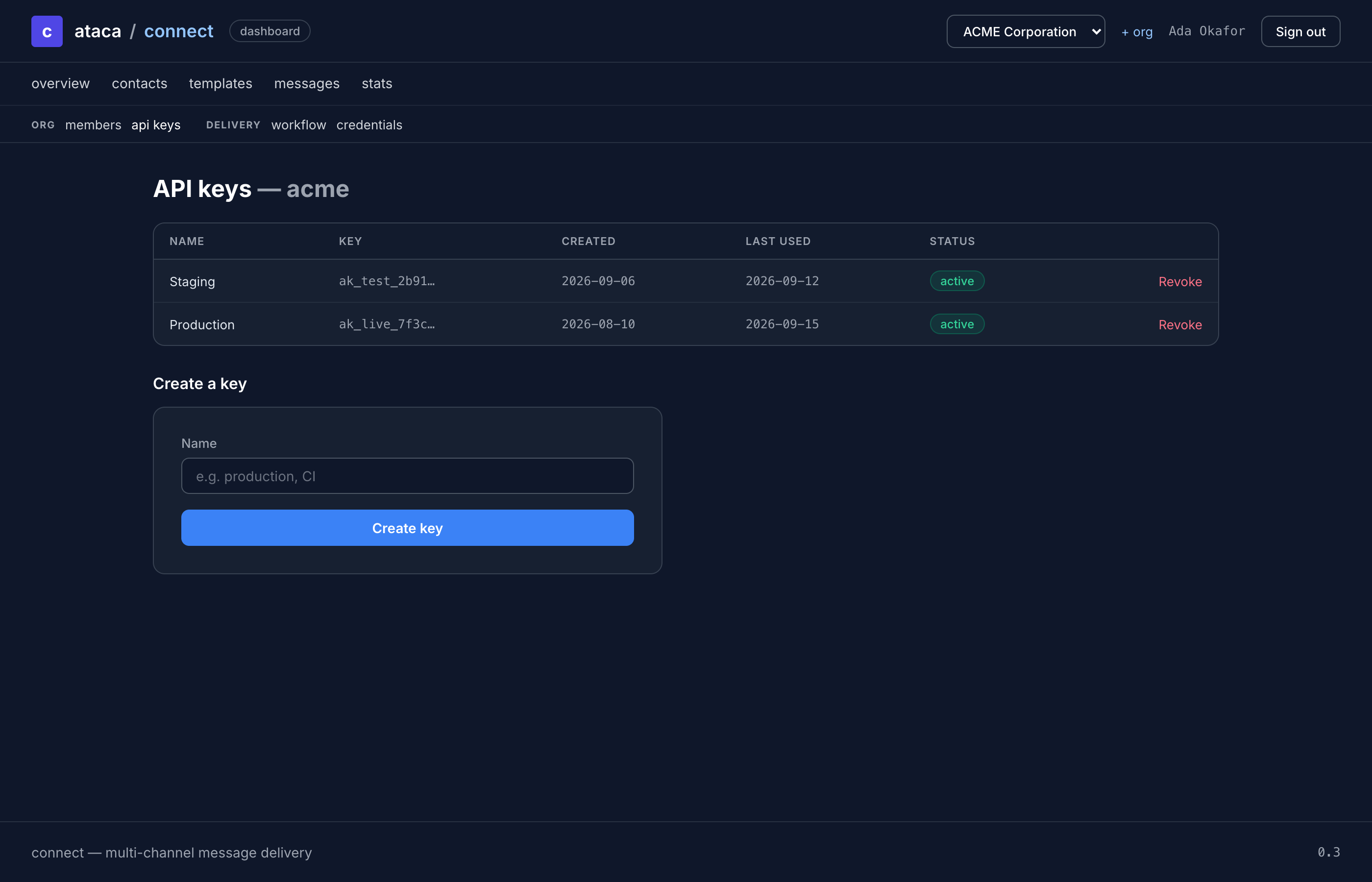
Create an API key
Go to Settings → API Keys and click Create Key. Give it a descriptive name.
Copy the key immediately — it starts with atc_ and is only shown once. The dashboard stores a SHA-256 hash for authentication; the plaintext key cannot be retrieved later.
Create a contact
Use the API to create your first contact:
curl -X POST https://connect.ataca.io/v1/contacts \
  -H "Authorization: Bearer $API_KEY" \
  -H "Content-Type: application/json" \
  -d '{"number": "+1234567890", "email": "[email protected]"}'
Response:
{
  "status": "ok",
  "time": "2026-04-06T10:00:00.000000000Z",
  "request_id": "01jqk...",
  "data": {
    "id": "01jqk...",
    "number": "+1234567890",
    "email": "[email protected]",
    "reference": "",
    "created_at": "2026-04-06T10:00:00.000000000Z"
  }
}
Save the id from the response — you'll need it to send messages.
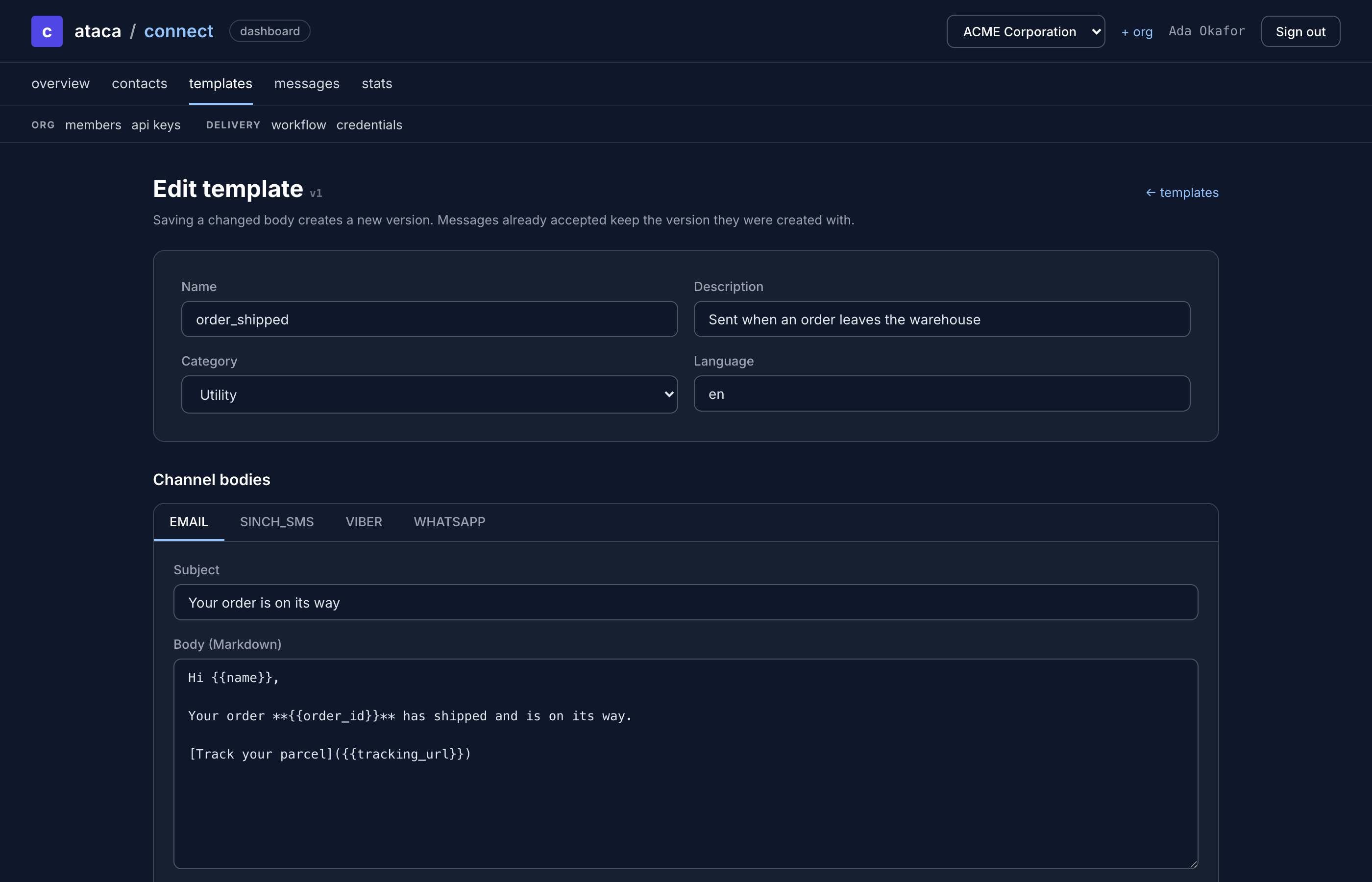
Create a template
Go to Templates in the dashboard and click Create Template. Give it a name (e.g., welcome), add a description, and write channel-specific message bodies.
Use {{placeholders}} for dynamic content:
Hello {{first_name}}, welcome to our service!
Placeholders can have defaults: {{discount:"10%"}} uses "10%" when no value is provided.
Send your first message
With a contact and template ready:
curl -X POST https://connect.ataca.io/v1/send \
  -H "Authorization: Bearer $API_KEY" \
  -H "Content-Type: application/json" \
  -d '{
    "contact_id": "CONTACT_ID",
    "template": "welcome",
    "data": {"first_name": "Alice"}
  }'
Response:
{
  "status": "ok",
  "time": "2026-04-06T10:01:00.000000000Z",
  "request_id": "01jqk...",
  "data": {
    "id": "01jqk...",
    "contact_id": "01jqk...",
    "template": "welcome",
    "status": "pending",
    "created_at": "2026-04-06T10:01:00.000000000Z"
  }
}
The message is enqueued for async delivery. The orchestrator processes it through your configured delivery policy — trying each channel in order until delivery succeeds.
Next steps
- Authentication — API key details, rate limits, and dashboard login
- Channel Setup Guides — configure WhatsApp, SMS, Email, Viber, or Telegram
- Delivery Workflow — understand cascade policies and fallback behavior